Higgsfield Shorts Studio: eight steps to a video with an AI presenter
The November 4 launch combines a presenter, voice, script and motion reference. A practical workflow, duration and credit limits, plus review checks and original Higgsfield media.
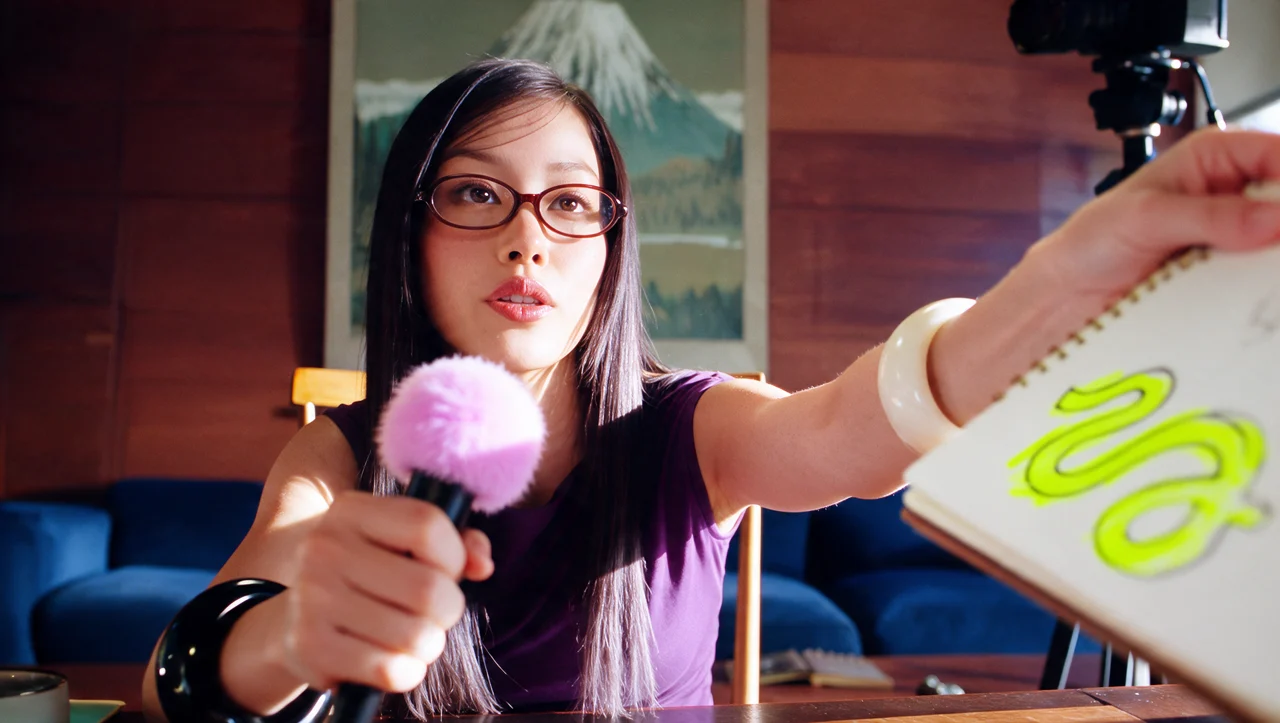
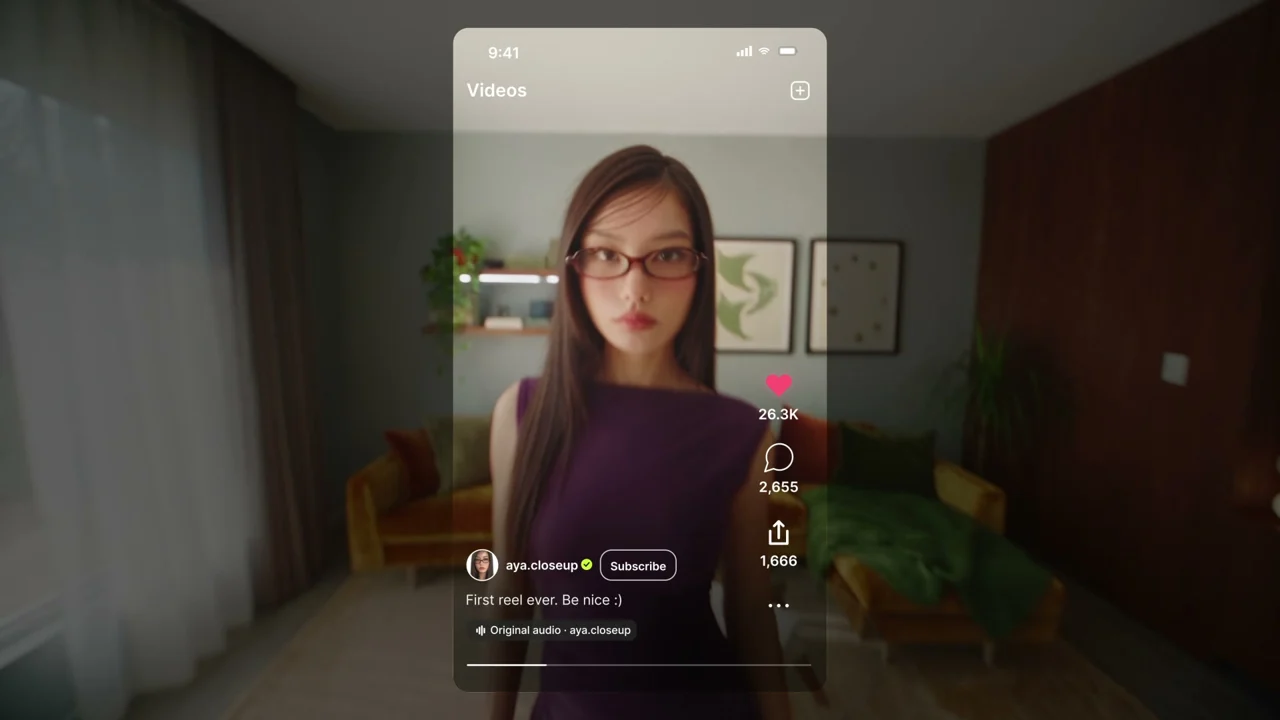
On November 4, Higgsfield introduced Shorts Studio, a tool for vertical videos featuring an AI presenter. It combines a character, product materials, a spoken script and, optionally, a motion-reference clip. The practical opportunity is a short explanation or a recurring series with a familiar host, rather than starting every episode with a different face.
We reviewed the complete announcement and its original image and demonstration video. The workflow below distinguishes the supplier's instructions from our editorial recommendations. We did not submit a generation, and this article does not confirm that Shorts Studio is available directly through VIZURAI.
Prepare a small, specific brief
The announcement allows up to 38 images or videos for characters, products and clothing. Materials can come from Uploads, AI Influencer, Generations and Liked. A separate, optional motion-reference video must be 10–120 seconds long. That limit concerns an input clip; it is different from the duration of the finished short.
The stated output is vertical 9:16, with four length options: 15 seconds, 30 seconds, one minute and two minutes. Basic and High quality are available, alongside more than 25 presets. These are selectable options, not a promise that every reference produces an equally convincing result.
Our hypothetical example is a shop that needs a short explanation of a backpack's pockets. List two verifiable features and prepare consistent product photographs before production. This example is a teaching brief, not a test we ran. For a first attempt, one identifiable item and one communication goal are easier to assess than a catalogue of unrelated products.
Eight actions from setup to a finished short
1. Open the tool
Go to Shorts Studio and choose Start generate. First decide what the viewer should understand, such as where the pockets are located. A vague claim about the best backpack gives the presenter little useful information. This is our recommendation for preparing a brief, not an extra interface setting.
2. Choose a reference
At the Reference stage, select the example and press Continue. For an uploaded motion clip, check the stated 10–120-second range; the source recommends trimming a clip that falls outside it. Choose motion that suits the new character and leaves the demonstrated object visible.
3. Add the presenter
In Character, add the person who should appear, then Continue. Existing AI Influencer characters and previous account materials can be reused. For a series, keep a consistent set of approved references. Reusing a filename alone is not evidence that the face and clothing remain consistent across finished episodes.
4. Select the voice
The guide lists Male, Female and Custom options. Auto generate creates a voice matched to the uploaded character, followed by Continue. A matched voice is different from a verified clone of a particular real person: the announcement does not make that promise. Keep that distinction clear when planning a recurring host.
5. Describe the topic
In Script, explain what the short should cover. According to the published sequence, Continue asks Shorts Studio to write the script. A topic description and the host's eventual spoken words therefore need separate checks. For the backpack example, supply actual features and compare the finished speech with those facts, rather than allowing attractive but unsupported product claims.
6. Set length and quality
Choose the duration and Basic or High. Higgsfield describes Basic as faster and cheaper, with medium quality; High takes longer and costs more. That is the supplier's description, not a comparison we measured. For a longer explanation, consider whether the content fits the selected duration without rushed delivery or missing information.
7. Choose the generation route
The guide offers in Higgsfield for the website and in Claude for continuing through Higgsfield MCP. Seeing that choice does not establish that the reader's Claude connection is already configured. Select a route you can actually access; reading this article does not automatically connect an external account.
8. Check the cost and generate
Continue through the selected route after checking the displayed Generate-button price. The source says finished clips appear in History. It also states that credits used by a failed generation are returned automatically and can be checked in Manage Account → Usage. We have not tested that refund behavior.
Budget for an attempt
The November 4 announcement lists 90 Higgsfield credits for 15 seconds in Basic and 240 in High. Thirty seconds is listed at 180 or 480, one minute at 360 or 960, and two minutes at 720 or 1,920. These are Higgsfield credits, not VIZURAI credits. Check the actual supplier interface before submitting: the displayed operation price takes priority over a reproduced table, and revisions may require additional attempts.
Review the whole result
Watch the complete short rather than judging its opening frame. Compare the presenter's face at the beginning and end, the product's shape, color and lettering, the spoken content and the transferred movement. Check the vertical composition on a phone, where platform buttons and captions may cover an important detail.
Confirm that you have the rights needed for source photographs, clips and any real person's likeness. A useful next step is one compact brief with acceptance criteria and a checked per-attempt cost. The button below selects VIZURAI's video-generation direction; it does not announce a Shorts Studio integration.
Create your own result
Choose an available model and check its price in the studio.
Sources
- Higgsfield — Higgsfield Introduces Shorts Studio: Create Shorts With an AI Presenter Published by the source: